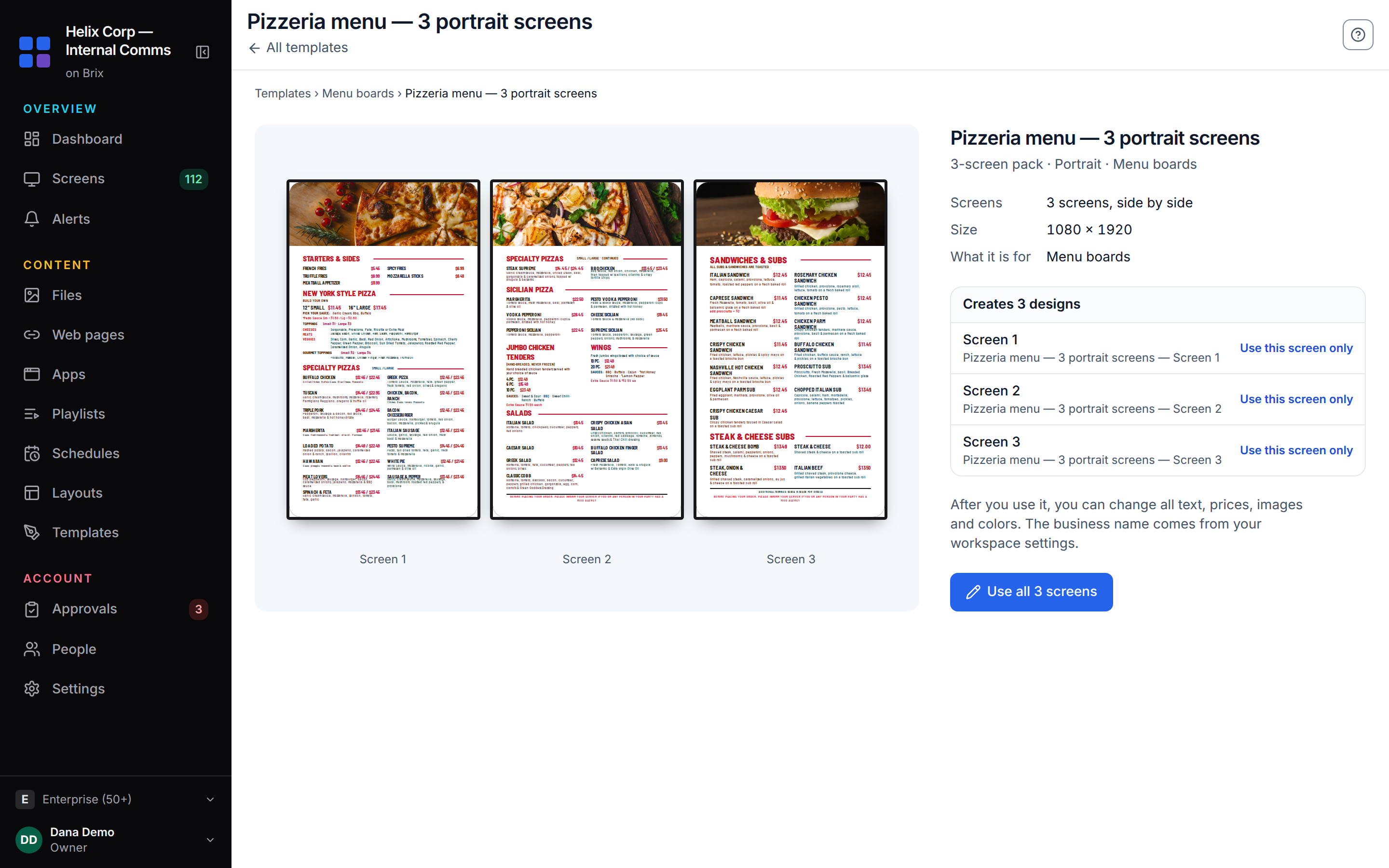
A three-TV digital menu board is three separate screens, each showing its own part of the menu. In Brix, start from a menu pack: one template made for three (or four) TVs side by side. Select Use all 3 screens, and Brix makes one design for each TV. Pair the three screens, put each design on its TV, and group the screens so you change all of them at once. If your TVs already hang landscape, use the Menu Board app on each TV instead (see below). Start a free trial to set up your first screen in about 10 minutes.
Do three TVs show one connected menu, or three separate screens?
Three separate screens. Brix does not stretch one picture across three TVs, so do not design an image that runs edge to edge across them. Give each TV a complete section of the menu instead: one TV for mains, one for combos and sides, one for drinks and specials. This split is the classic counter board. One TV going offline does not take the whole menu down with it. For a single TV, the four ways to put a menu on a TV compares the options.
A menu pack is built this way. Each screen of the pack is a full design of its own. All the screens share the same fonts, colors and photo style.
What menu board layout works for three TVs?
A menu board layout for a three-screen counter usually splits by category. Two patterns cover most quick-service and café counters:
- By category: mains on TV one, combos and sides on TV two, drinks and specials on TV three.
- By daypart: all three TVs show the same menu. A schedule switches every screen from breakfast to lunch to late-night at set times.
Buy the three TVs at the same time, from the same model line. Brix does not need matching hardware. But different brightness and color on screens next to each other look like a fault to a customer.
What size TVs do you need, and how far away can people read them?
Pick the TV size from the distance between the counter line and the screens. Menu board setup guides give these common rules:
| Place | Common TV size | What to check |
|---|---|---|
| Small café | 32 to 34 inches | About 10 inches of screen for every 4 to 6 feet of distance |
| Quick-service counter | 43 to 50 inches (many walls use 43 to 55) | Read the prices from 10 to 15 feet away |
| Full-service restaurant | 55 to 65 inches | The far end of the room, not the front of the line |
- Text size: use text of 30 points or larger for items and prices.
- Columns: three or four price columns per screen at most. Five columns blur from about 10 feet away.
- Brightness: an indoor menu board usually needs 400 to 700 nits. A board near a sunny window needs more.
- Test it: stand where the customer stands, 10 to 15 feet back. Read every price before you call the board done.
In the Menu Board app, the Columns setting (1 to 4, or Automatic) and Items per page keep a long menu readable. A menu with more items changes page by itself.
Consumer TV or commercial display?
A consumer TV is fine for most menu boards that run during opening hours. A commercial display earns its higher price when the board runs most of the day, faces bright light, or hangs in portrait.
| Consumer TV | Commercial display | |
|---|---|---|
| Hours a day it is built for | About 8 | 16 to 24 |
| Brightness | About 300 to 500 nits | 500 to 1,000 nits or more |
| Warranty | About 1 year, often void in business use | 3 years or more, covers business use |
| Portrait mounting | Not supported by most models | Supported on many models (check the spec sheet) |
Read the warranty before you buy. Many consumer TV warranties cover home use only, and a restaurant counts as business use. Samsung states that a consumer TV in portrait eventually fails, because it does not have the cooling for that position. On most consumer TVs, portrait mounting also voids the warranty. So if you want the portrait menu packs, buy commercial screens that list portrait support. For more on this choice, see the best TV for digital signage.
How to mount three or four TVs
- Hang all the TVs at the same height and the same angle, so the bottom edges make one line.
- Use one multi-screen menu board mount or a wall rail. The rail keeps the TVs level and in line. You can move one TV without moving the others.
- Choose TVs with thin bezels, so the gaps between screens are small.
- Tilt the TVs down a little when they hang high above the counter. This cuts glare from ceiling lights.
- Plan power and a free HDMI port behind each TV. Each TV needs its own player.
Is there a menu template for 3 or 4 TVs?
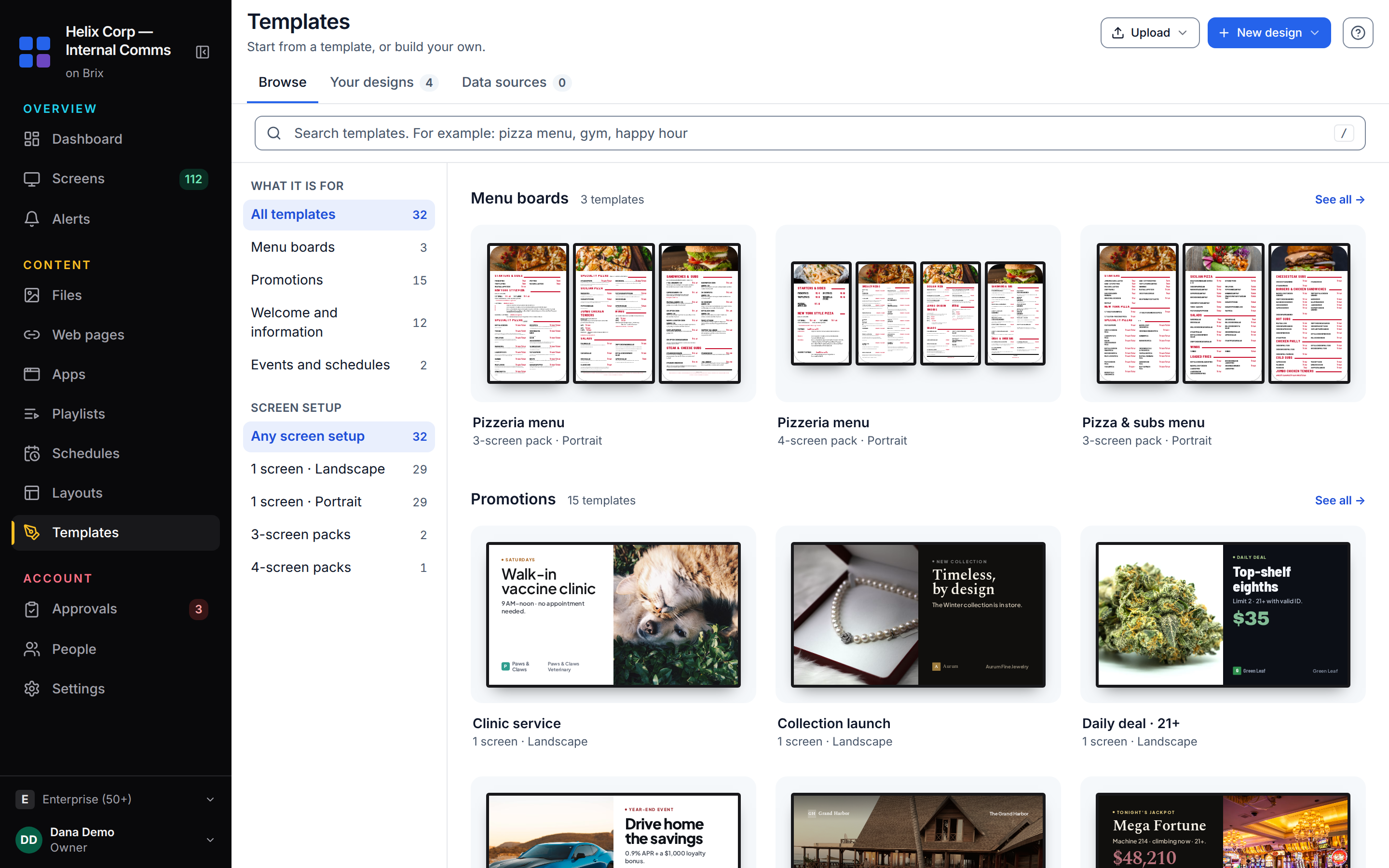
Yes. In Brix, go to Templates. Under Screen setup on the left, pick 3-screen packs or 4-screen packs. The gallery then shows only the packs for that number of TVs. Each card shows every screen of the pack side by side, and its second line says the size and shape, for example "3-screen pack · Portrait".
Open a pack to see its page:
- Screens: for example "3 screens, side by side".
- Size: the size of each screen's design, for example 1080 × 1920 for a portrait TV.
- Creates 3 designs: the list of Screen 1, Screen 2 and Screen 3, each with Use this screen only.
- Use all 3 screens (or Use all 4 screens): makes one design for each screen.
The designs are named after the pack and the screen, for example "Pizzeria menu — Screen 1". Screen 1 is the left TV. After you select Use all 3 screens, the editor opens on Screen 1. You can change all text, prices, images and colors. The business name comes from your workspace settings.
The menu packs in the gallery are portrait: each TV hangs on its end. Set each TV to portrait in Brix (see the steps below) before the designs go on it, or they play with bars at the sides.
What if my TVs already hang landscape?
Keep them landscape and use the Menu Board app on each TV. The portrait packs do not fit a landscape TV without bars, so do not force them. Most counter walls are landscape, and the app fills a landscape screen with your menu.
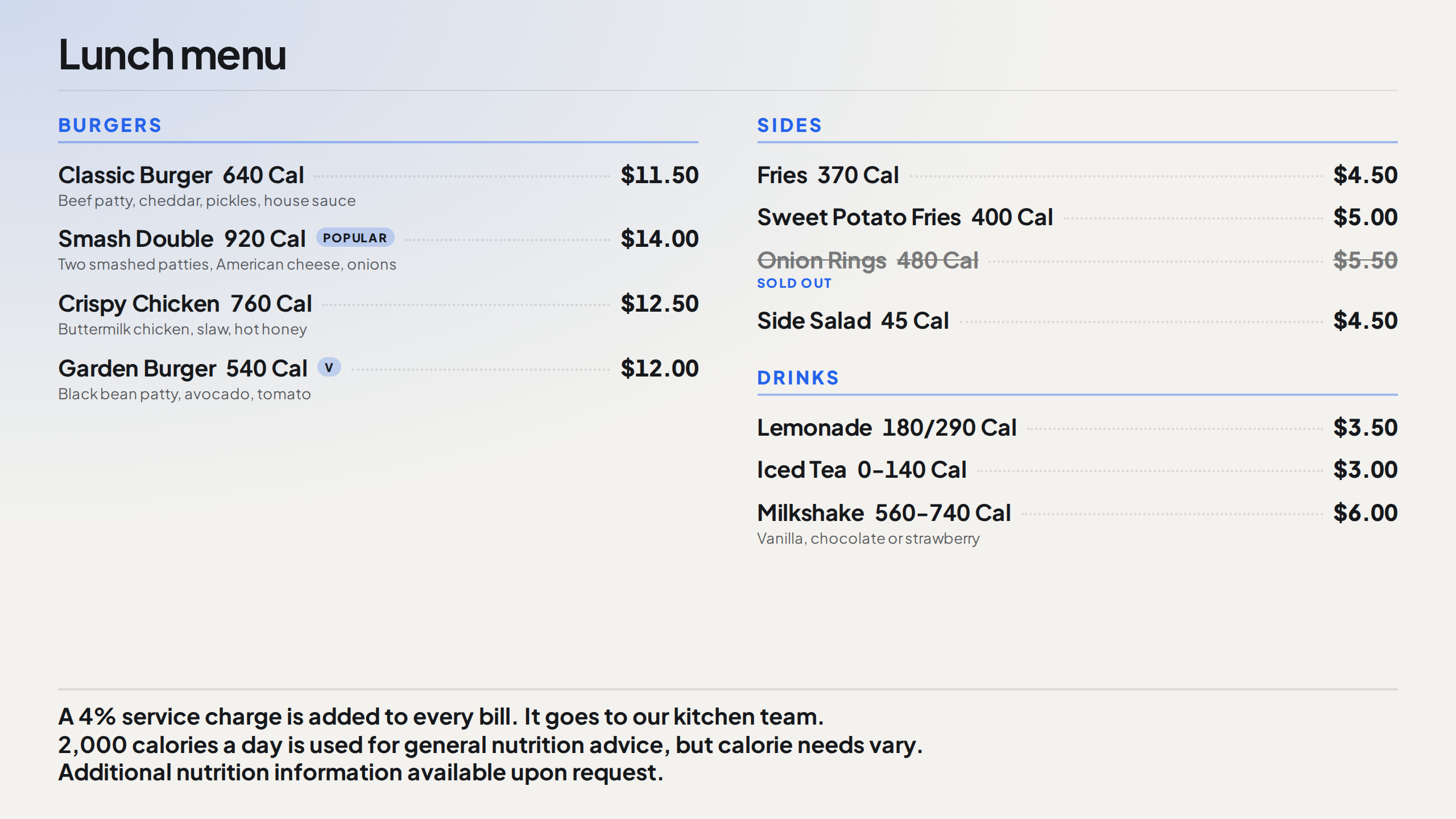
- Put the whole menu in one place: a Google Sheet, a CSV or JSON file, or your point of sale. Use the columns Category, Item, Price, Description, Image, Sold out and Calories.
- Go to Apps and set up the Menu Board app once for each TV. Use the same menu data source for all of them.
- In each copy, use Categories to show to pick that TV's part of the menu. For example, type "Burgers, Chicken" for the left TV. Type "Combos, Sides" for the center TV and "Drinks, Desserts" for the right TV.
- Set Columns to 3 or 4, and type a Heading for each TV.
One price change in the sheet then reaches the correct TV, and the three boards keep the same look. If you want a designed look instead, select New design > Blank design. The canvas starts at Landscape · 1920×1080. Make one design for each TV.
The third choice is to turn the TVs to portrait. Do this only if the TVs support portrait mounting (see the table above).
How do you set up a 3 TV digital menu board in Brix?
- Pair the first screen. During the Signage Stick's own setup, pick "Brix Signage". Then go to Screens > Add screen > Pair a hardware device.
- Pair the second and third screens the same way. Connect a screen shows the other ways to pair, such as a browser tab for a test. Name each screen by where it hangs, for example "Counter Left", "Counter Center" and "Counter Right". Then you know which TV is which in every later step.
- Go to Templates and set Screen setup to 3-screen packs. Open a pack and select Use all 3 screens. Change the words, prices and photos on each of the three designs. (For landscape TVs, set up the Menu Board app on each TV instead, as above.)
- Create a screen group for the three TVs. Then you can filter the Screens page to the group and select all three at once.
- For a portrait pack, select the three screens. In the bulk bar, select More > Orientation to turn them all to portrait. The portrait guide shows how this works on the Signage Stick.
- Put each design on its TV. Open the group and select Give the screens positions. Names that end in Left, Center and Right give the positions by themselves. Then select Content by position and choose the content for each position.
- Set opening hours once for all three. Select the group's screens. In the bulk bar, select More > On and off times. Outside those hours, a Signage Stick turns its TV off. Other players show a blank screen and leave the TV on.
If every TV shows the same menu instead, use the group's bulk Change content action to put one playlist on all three.
What about a 4 TV menu board?
A four-TV menu board works the same way as three, with one more screen. Filter Screen setup to 4-screen packs, open the pack and select Use all 4 screens. Brix makes four designs, Screen 1 to Screen 4, from left to right. Pair four players, group the four screens and put one design on each TV.
A common split for four TVs:
- TV 1: mains.
- TV 2: combos and prices.
- TV 3: sides, drinks and desserts.
- TV 4: promotions, limited-time offers or a brand video.
You can also use a 3-screen pack on three TVs and give the fourth its own playlist of promotions and video. The fourth screen then changes on its own schedule, and the menu stays still.
Three ways to fill the menu screens
| Way to fill the screen | Who updates it | Good for |
|---|---|---|
| Menu pack (Templates, 3-screen or 4-screen pack) | Whoever edits the designs | A matched look across portrait TVs, prices typed in by hand |
| Upload images or video per TV | Whoever edits the playlist | A menu that rarely changes |
| Menu Board app (Sheet, CSV, JSON, API or point of sale) | The spreadsheet or POS, automatically | Landscape TVs, a menu with many items, or prices that change often |
The Menu Board app shows a sold-out item with its price struck through, instead of deleting the row. The app can also show FDA-style calorie labeling and a note line at the bottom for a US chain menu.
Brix connects to Toast, Square and Clover. Our team sets up the connection with you. The same feed can drive the Menu Board app on every screen. A price change in the POS then reaches every TV, and nobody has to touch the CMS.
What happens if one of the TVs goes offline?
The screen keeps showing its last downloaded content. A Brix screen keeps a copy of what it plays. A dropped network connection does not blank the TV or freeze it on an error message. The customer still sees a menu, but not the newest one. Turn on offline alerts (email, webhook or Microsoft Teams). Then staff hear about a dark or stuck TV from Brix, not from a customer at the counter.
How fast do price changes reach all the screens?
Brix pushes a change to each screen over its live connection. A screen that has lost that connection checks again every 30 seconds. The TVs do not switch in the same instant. But a change you push to the group reaches every screen within moments of the others, not minutes.
What hardware works for a three or four screen menu board?
Each TV needs its own player. Brix runs on:
- the Amazon Signage Stick (the "Fire Stick" behind the TV) and Fire TV;
- Android boxes such as the Walmart onn;
- a TV with Google TV or Android TV built in;
- the Windows player.
Brix manages only the Amazon players (Signage Stick, Fire TV) remotely. You can pair and schedule an Android box or a Google TV install from the Play Store. But Brix cannot reboot it from the CMS. Of the Amazon players, only the Signage Stick can also reboot and turn the TV on or off from the CMS.
What does a 3 or 4 TV menu board cost?
| 3 TVs | 4 TVs | |
|---|---|---|
| Amazon Signage Sticks ($99.99 each) | about $300 | about $400 |
| Walmart onn 4K streaming boxes (roughly $40 each) | about $120 | about $160 |
| Brix, billed annually ($6 per screen per month) | $18 a month | $24 a month |
| Brix, billed monthly ($8 per screen per month) | $24 a month | $32 a month |
The Signage Stick price rises to $174.99 on 7 January 2027. A Stick bought before then saves $75. Three Sticks save $225. See the Signage Stick price increase.
Every Signage Stick gets remote reboot and screenshots from the CMS. The onn is the cheaper way to get the screens running, without remote reboot. The TVs and mounts are extra. The trial is 7 days, and you need no card to start it.
FAQ
Can Brix stretch one picture across three TVs?
No. Each screen plays its own content. Use a menu pack or the Menu Board app, with one part of the menu per TV. Do not use one wide image across separate screens.
Can I use the portrait menu packs on landscape TVs?
Not without bars at the sides. For landscape TVs, use the Menu Board app on each TV, or make one landscape design per TV.
Can I use only one screen of a pack?
Yes. On the pack's page, select Use this screen only beside the screen you want. Brix makes that one design.
Do the TVs need to be the same model?
Brix does not need it. But matching models bought together keep color and brightness the same, so the board reads as one sign.
How do you turn off all the TVs at closing?
Select the screens, then select More > On and off times in the bulk bar to set their hours once. "Standard hours" runs 6 am to 11 pm by default. A Signage Stick turns its TV off outside those hours. Set "Always on" if the board runs around the clock.
Start a free trial and pair your first menu board TV in about 10 minutes.