Display live event schedules from your venue management system on digital signage throughout your facility using Momentus or other event management system.
Overview
The Event Centers feature connects to Momentus (formerly Ungerboeck) venue management systems to display:
- Today’s events and meetings
- Room/space assignments
- Event times
- Custom event details
Perfect for convention centers, hotels, universities, and corporate campuses.
Adding a Momentus Event Source
- From the Dashboard, find the Event Centers section
- Click + Add Source
- Fill in the connection details
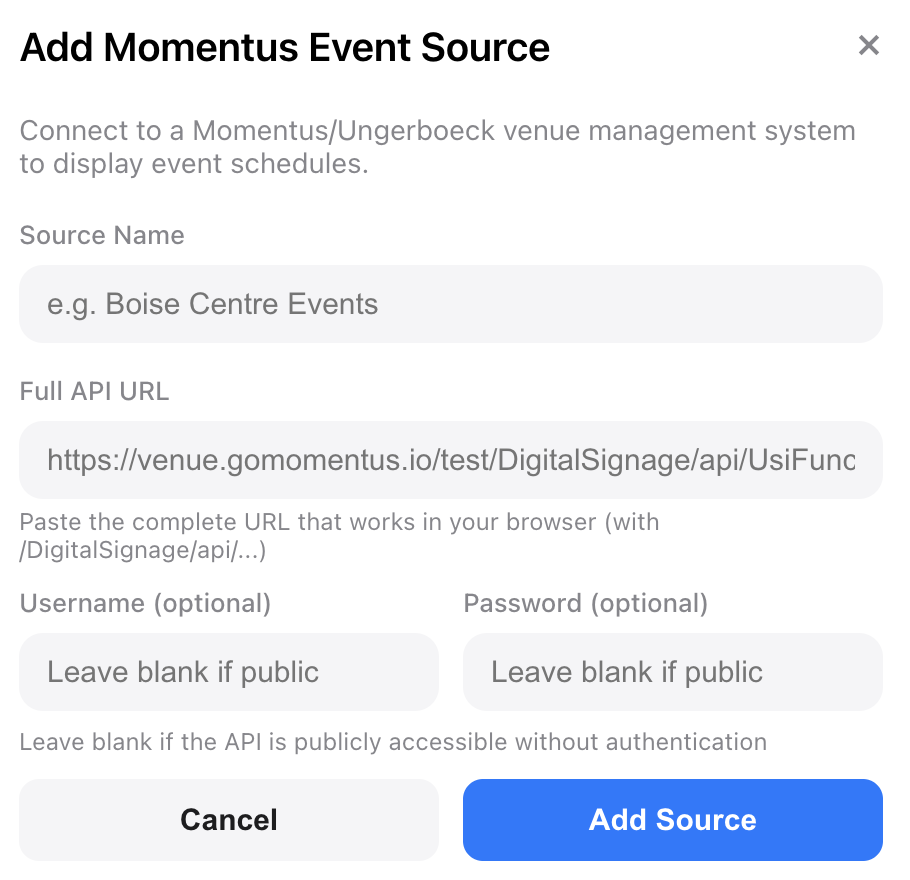
Required Fields
| Field | Description | Example |
|---|---|---|
| Source Name | A friendly name for this feed | “Boise Centre Events” |
| Full API URL | The complete Momentus API endpoint | See below |
API URL Format
Your Momentus API URL typically follows this pattern:
https://[venue].gomomentus.io/[instance]/DigitalSignage/api/UsiFunctionsByDays/[past]/[future]Parameters:
- [venue] - Your venue subdomain (e.g., boisecentre)
- [instance] - Usually test or prod
- [past] - Days to look back (e.g., 0 for today only)
- [future] - Days to look ahead (e.g., 14 for two weeks)
Example URLs:
https://boisecentre.gomomentus.io/test/DigitalSignage/api/UsiFunctionsByDays/0/14
https://venue.gomomentus.io/prod/DigitalSignage/api/UsiFunctionsByDays/1/7
Filtering by Space
To show events for specific rooms only, add a spaces parameter:
https://boisecentre.gomomentus.io/test/DigitalSignage/api/UsiFunctionsByDays/10/14?spaces=120B,120AAuthentication (Optional)
If your Momentus API requires authentication:
- Enter the Username and Password in the optional fields
- Credentials are stored securely and never displayed after saving
Testing Your Connection
- After adding the source, it appears in your Event Centers list
- Click Fetch Events to test the connection
- If successful, you’ll see:
[SCREENSHOT: Successfully connected source showing event count]
- If there’s an error:
Adding an Event Board to Your Design
- Open a design in the Editor
- Click + Add Box
- Select Event Board
- Position and resize the Event Board on your canvas
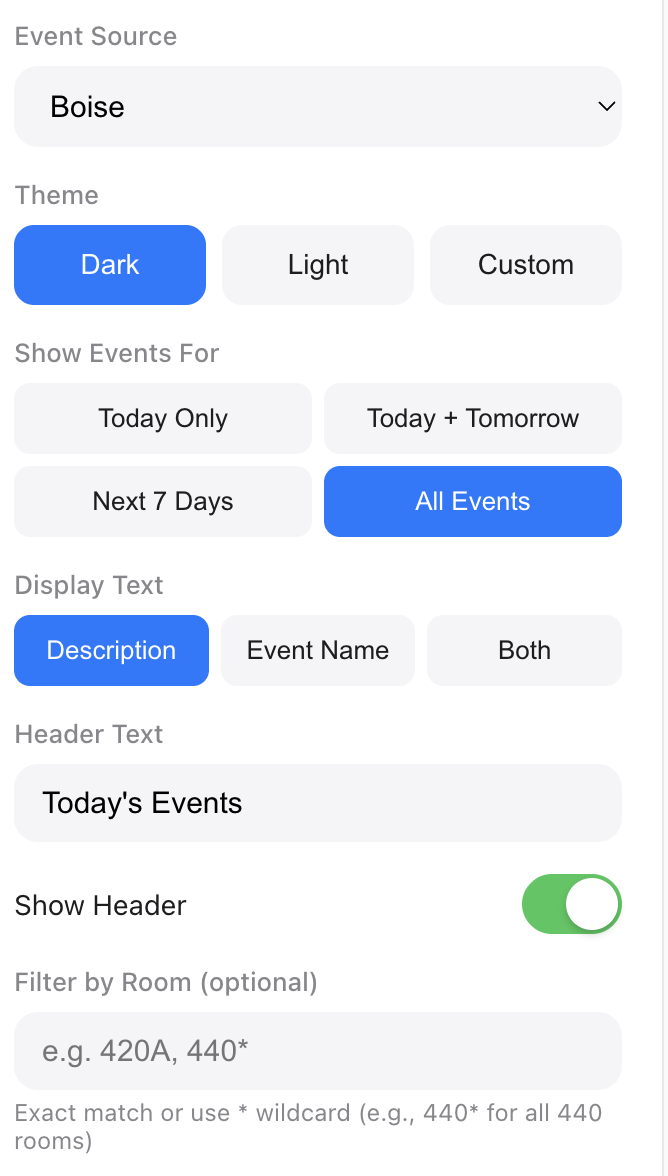
- In the Properties panel, configure:
Event Board Properties
| Property | Description |
|---|---|
| Event Source | Select which Momentus source to use |
| Show Events For | Filter by date: Today Only, Today + Tomorrow, Next 7 Days, or All Events |
| Display Text | What to show: Description, Event Name, or Both |
| Max Events | Limit how many events to show (1-50) |
| Layout | Auto, Horizontal, or Stacked |
| Theme | Dark, Light, or Custom colors |
| Show Header | Toggle the header on/off |
| Header Text | Customize header (auto-generates based on date range if blank) |
| Font | Choose from available font families |
| Room Filter | Show only specific rooms (e.g., “420A” or “440*” for wildcards) |
Date Filtering
Control which days’ events appear on your display:
Today Only (Default)
- Shows only events happening today
- Header automatically displays “Today’s Events”
- Best for most lobby and room displays
Today + Tomorrow
- Shows events for today and tomorrow
- Header displays “Today & Tomorrow”
- Good for end-of-day planning displays
Next 7 Days
- Shows all events in the coming week
- Header displays “This Week’s Events”
- Best for weekly planning boards
All Events
- Shows all events from the Momentus feed
- Header displays “Upcoming Events”
- Use when you’ve already filtered by date range in the API URL
Display Text Options
Choose what information to show for each event:
Description (Default)
Shows the event description field from Momentus. Falls back to event name if no description exists.
Event Name
Shows the event name field. Falls back to description if no name exists.
Both
Shows both description and event name combined (e.g., “Annual Conference - ACME Corp Meeting”).
Display Layouts
Auto Layout
Automatically chooses the best layout based on: - Box dimensions (portrait vs landscape) - Number of events - Text length
Horizontal Layout
- Time on the left
- Event name in the middle
- Room badge on the right
- Best for wide, short boxes
Stacked Layout
- Time and room on first line
- Event name below
- Best for tall or square boxes
Themes
Dark Theme
- Dark background with cyan accents
- Best for high-contrast visibility
Light Theme
- White background with blue accents
- Best for bright environments
Custom Theme
Set your own colors: - Background color - Text color - Accent color (times and room badges)
Smart Text Sizing
Event names automatically adjust their font size based on:
- Available space - More events = smaller text
- Text length - Longer titles scale down to fit
- Individual sizing - Each event is sized independently
This ensures all event names remain readable without getting cut off.
Deploying Your Event Display
- Click Setup Display in the editor
- Find your location in the Location URLs section
- Click Preview to test how it looks
- Click Copy URL to get the embed URL
- Use this URL in your digital signage player
Troubleshooting
“Fetch Events” stays stuck on “Fetching…”
- Check your API URL is correct
- Verify the Momentus server is accessible
- Try the URL directly in your browser to test
401 Unauthorized Error
- Your API requires authentication
- Enter username and password in the source settings
- Verify credentials are correct
404 Not Found Error
- Check the API URL format
- Verify your venue subdomain is correct
- Confirm the instance name (test/prod)
Events not showing in preview
- Click “Fetch Events” to refresh data
- Check the Event Source is selected in the Event Board properties
- Verify there are events scheduled for the date range
Wrong events appearing
- Check the
spacesparameter in your URL - Verify the date range (past/future days)
- Ensure you’re using the correct Momentus source
Data Refresh
- Event data is cached after each fetch
- Click Fetch Events manually to refresh
- For automatic refresh, configure your signage player to reload the page periodically (e.g., every 15 minutes)
Best Practices
- Use descriptive source names - Include venue/building name
- Filter by space - Show only relevant rooms for each display location
- Test in preview - Always verify before deploying to screens
- Set appropriate date range - Don’t fetch more days than needed
- Monitor regularly - Check connections periodically for any issues