Proof of play is the log a digital signage player keeps of every item it played: which content, on which screen, at what time and for how long, plus the items it skipped or failed to play. When vendors pay you for screen time, or an advertiser asks for guaranteed play, this log is the evidence that the campaign ran.
The player records it, so it proves the player played the file. It does not prove the TV was on, the picture was visible, or anyone looked at it. Nothing is filled in afterwards, so turn recording on before the campaign starts.
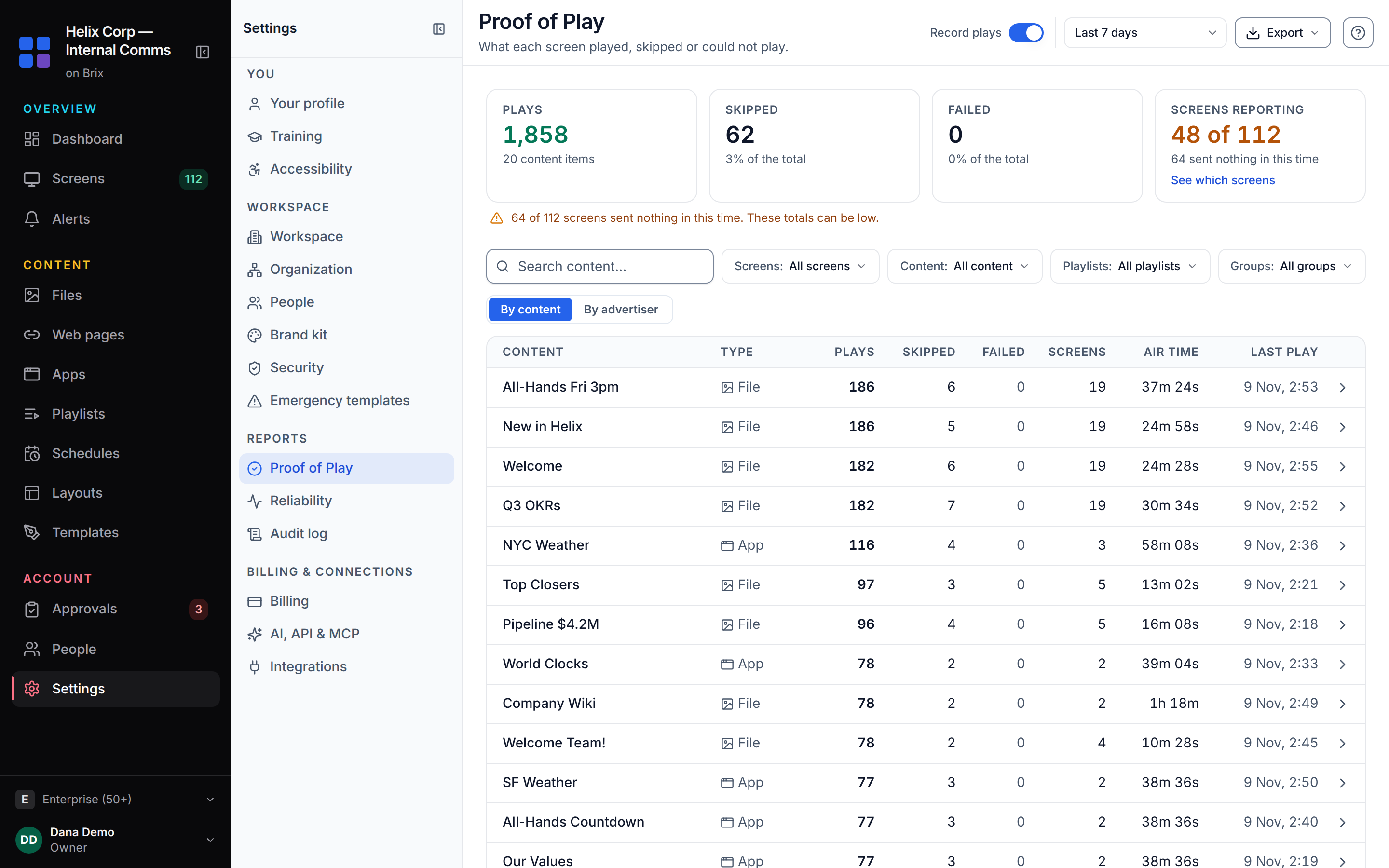
In Brix, open Settings > Proof of Play, turn on recording, choose the campaign dates and open Export.
Turn on proof-of-play recording
- Select Settings in the sidebar, then Proof of Play under Reports.
- Select Start recording in the amber Recording is off banner.
- Check that the Record plays switch in the top bar is on.
- Recording is off by default. A free trial turns it on, and it switches off when a paid plan starts. Turn it back on here, or under Settings > Organization > Feature defaults.
- Only a member who can change billing sees the switch. Everyone else sees a read-only Recording or Recording off pill.
- Turning recording off stops new logging only. The report and the exports keep the history you already have.
New to Brix? Start a 7-day free trial. No card needed.
Report on a campaign window
- Open the date range list in the top bar: Last 24h, Last 7 days, Last 14 days, Last week or Custom range....
- For a custom range, fill in both dates. With one date only, the report shows the last 7 days.
- Read the four totals: Plays, Skipped, Failed and Screens reporting. They are the complete count for the window, not a sample.
- Narrow the report with Search content... and the Screens, Content, Playlists, Groups and Tags filters. Clear filters resets them.
- Select a row in the By content table to open its play log, grouped by day, with the time, screen, length and result of each play.
Screens reporting shows how many screens sent play reports out of your whole fleet. A screen that is off or has nothing to play sends none (a screen that goes offline keeps up to its last 500 plays and sends them when it is back online), so check See which screens before you send a report. An advertiser will ask about plays that are missing.
Report plays by advertiser and venue
Screen networks that sell airtime need one report per advertiser, with the plays at each venue. In Brix, an advertiser is a tag on your files and designs. A venue is the location the screen is in, from Settings > Organization.
- Tag the advertiser's content. Open each file in Files and type the advertiser's name in Tags. In a design, select no box and type it in Tags. Separate tags with commas.
- In Proof of Play, set the date range to the campaign.
- Select By advertiser above the table.
- To show some advertisers only, select their tags in the Tags filter. Use Groups to limit the report to some venues.
- Read each advertiser's line: plays, minutes, venues and screens. Under it, one row for each venue lists the ads that played there, with plays, minutes, screens and the last play.
- Select Download CSV on an advertiser's line to get the file for that advertiser only. Send it to the advertiser.
How the counts work:
- Minutes count finished plays only. Skipped and failed plays are not in the play count or the minutes. The line shows how many plays did not finish.
- A file or design with two advertiser tags counts for each advertiser.
- Content with no tag shows under No tag, so the totals still add up. A screen deleted more than 30 days ago shows as Screen removed: its plays happened, and the advertiser is owed them.
The advertiser CSV has one row for each advertiser and venue: advertiser, venue, ads, screens, plays, skipped, failed, finished_min, finished_sec, first_play and last_play. The first lines of the file give the date range and the totals.
For how to price and sell that airtime, read how to sell advertising on digital signage.
Export the proof-of-play report
Set the date range and filters, then open Export in the top bar. The menu says what the files cover (dates, screens and content) before you choose:
| Export | What each line holds |
|---|---|
| Totals per screen (CSV) | Plays and air time for each item on each screen. This is the usual proof for a client. |
| Totals per content item (CSV) | One line for each item, with all screens added together. |
| Totals per group (CSV) | One line for each item in each group. |
| Totals per advertiser and venue (CSV) | Plays for each advertiser at each venue. |
The per-content file has content_id, content_name, content_kind, plays, skipped, failed, screens, air_time_sec, first_play and last_play. The per-screen file has group, screen_id, screen_name, content_id, content_name, plays, skipped, failed, air_time_sec, first_play and last_play. From one item's play log, Every play (CSV) gives each play with its exact time, for a client who asks for the detail.
Workspaces that sell ad spots can also download a Signed export (CSV or JSON). A verified play was signed by the key of the paired screen and was not changed afterwards. The signed files hold every play in the window, and the filters do not apply.
Email the report weekly or monthly
Brix can email the report you are looking at, with its filters, each week or each month.
- Set the filters. For one advertiser, select that advertiser's tag in Tags.
- Open Export and select Email reports.
- Type a Report name, for example the advertiser's name.
- Choose Weekly or Monthly in How often.
- Under Send to, select up to 10 people in your workspace. If you select nobody, the report goes to you.
- Select Save report.
- The first report goes within one hour. After that, each report covers the week or month that just ended.
- Each email has two CSV files: plays by group and plays by screen.
- The report goes only to people in your workspace. To send it to an advertiser, forward it.
- Your reports in the same window lists each report with its last status. Select Stop to end one. Only the person who made a report can see or stop it.
How long the history is kept
Brix keeps each play event for 14 days. It rolls them up into daily totals per content and screen, and keeps those for 400 days. So a report on an older window still gives plays, skips, failures and air time per day, but the play log only reaches back 14 days. Export the CSV at the end of each campaign, or set a monthly email report, if you need it for longer.
What proof of play does not tell you
- Whether the TV was on. A player can play to a TV that is switched off or on the wrong input. The Recent screenshots on the same page and each screen's live preview help you check the picture.
- Who watched. Brix does not count viewers or measure attention. If a buyer asks for impressions or audience figures, you need a separate audience measurement system.
- Plays before you turned it on. Nothing is recorded while recording is off.
Find out who changed something (audit log)
Proof of play shows what played. The audit log shows who changed what in the workspace.
- Select Settings, then Audit log.
- Type a name, target or phrase into Search summary, actor, target....
- Use the Action and Actor filters. Each row shows when, the actor, the action, the scope and the IP address.
- Select Load more for older rows. The page loads the 12,500 most recent events.
- Select Export CSV for the filtered rows, for example for a compliance request.
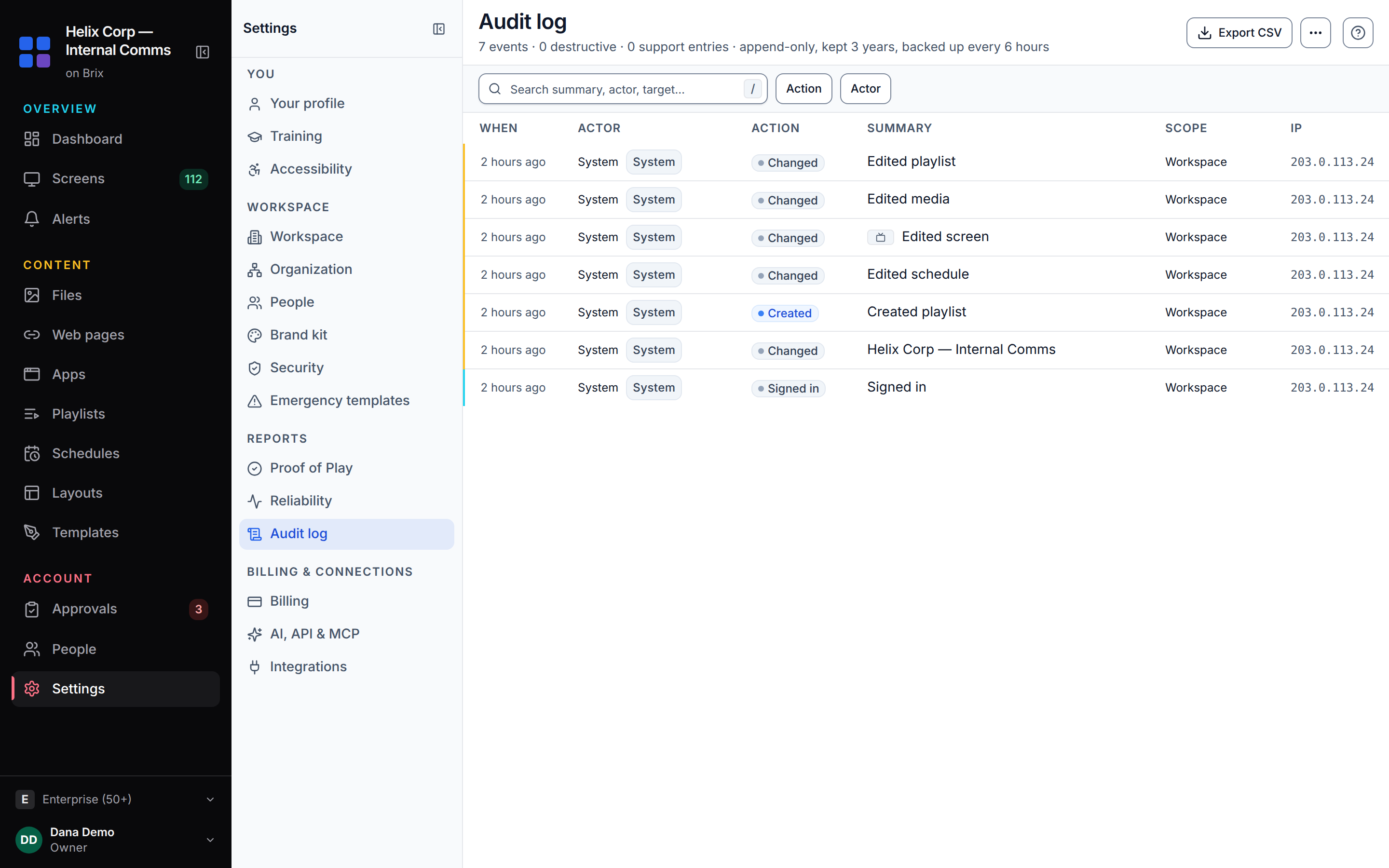
The audit log is append-only and kept for three years. Audit log appears in the settings list only where the audit log feature is on. It is on by default for workspaces set up for more than 10 screens, and any workspace can turn it on under Settings > Organization > Feature defaults.
To decide who can read these pages, read organization, people and roles. To get a message when a screen stops playing, read alerts and emergencies.
FAQ
Can I send each advertiser only their own plays?
Yes. Tag their files and designs with their name, select By advertiser and select Download CSV on their line. The file holds that advertiser only, with one row for each venue.
Can an advertiser get the report by email without a login?
Not directly. Email reports sends only to people in your workspace. Filter by the advertiser's tag, save a weekly or monthly report, and forward it.
Does proof of play cost extra?
No. It is included on the plan: $6 per screen per month billed annually, or $8 billed monthly. It is off by default, so turn it on before a campaign.
To set up proof of play on your own screens, start a free 7-day trial. No card is needed.