With cloud signage software you change what a screen plays from a browser, not at the TV: pick the screen in the CMS, choose the new content, and the player downloads it and switches over. There are three kinds of change:
- A permanent assignment replaces what the screen plays by default.
- A temporary takeover (a cast) shows something for a set time, then hands back.
- A short message goes out to many screens at once.
In Brix: select the screen on the Screens page, select Change content, pick an item, and it plays as soon as Brix saves. You need one paired screen; if you have none, read connect a screen first.
A screen plays one item at a time: a file, app, playlist, schedule, layout or design. To rotate several, put them in a playlist; to change by time of day, use a schedule.
Change what a screen plays
- Go to Screens in the sidebar.
- Select the screen you want to change.
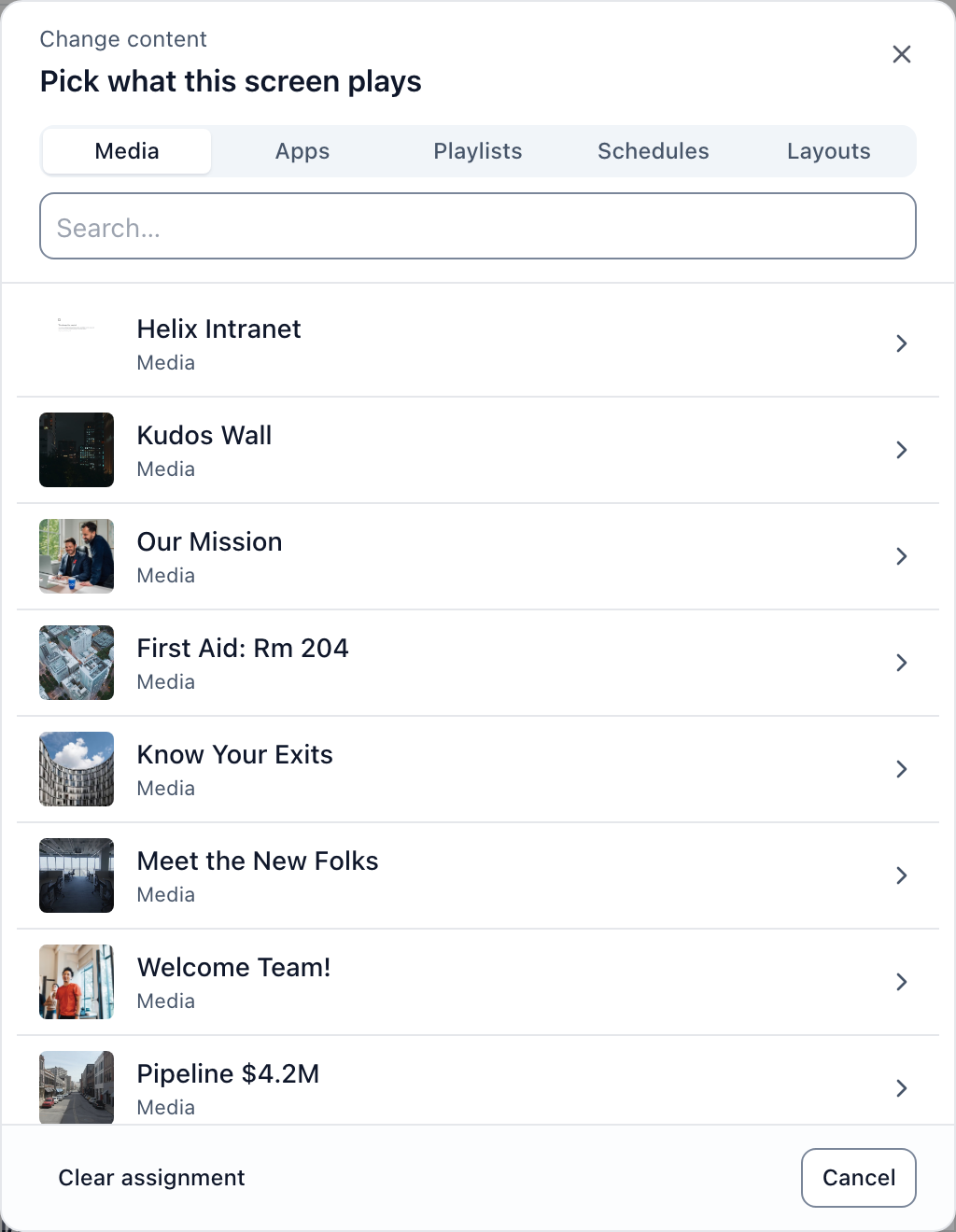
- Select Change content on the Now bar at the top of the panel.
- Select a tab: Files, Apps, Playlists, Schedules, Layouts or Templates.
- Type in the Search… box to narrow a long list.
- Select the item you want the screen to play.
The dialog closes as soon as Brix saves the change.
Change what several screens play from the list
- Go to Screens in the sidebar.
- Switch to list view.
- Point at the row of the screen you want.
- Select the content name in the row, beside the pencil marked Change.
- Select a tab: Files, Apps, Playlists, Schedules, Layouts or Templates.
- Select the item you want the screen to play.
To put the same content on many screens at once, tick them in the list first. See manage your screens.
New to Brix? Start a 7-day free trial. No card needed.
Undo a content change
- Look for the Now playing changed message in the bottom right corner.
- Select Undo in that message.
Clear the content on a screen
- Select Change content on the Now bar.
- Select Clear assignment at the bottom left of the dialog.
The screens list then reads Welcome screen for that screen.
Show something for a set time (cast)
A cast takes a screen over for a set length, then hands it back to its own content.
- Select the screen on the Screens page.
- Select Cast in the panel, or the dashed cast chip on the row.
- Pick an item under Content.
- Choose a length under For how long.
- Select Start cast.
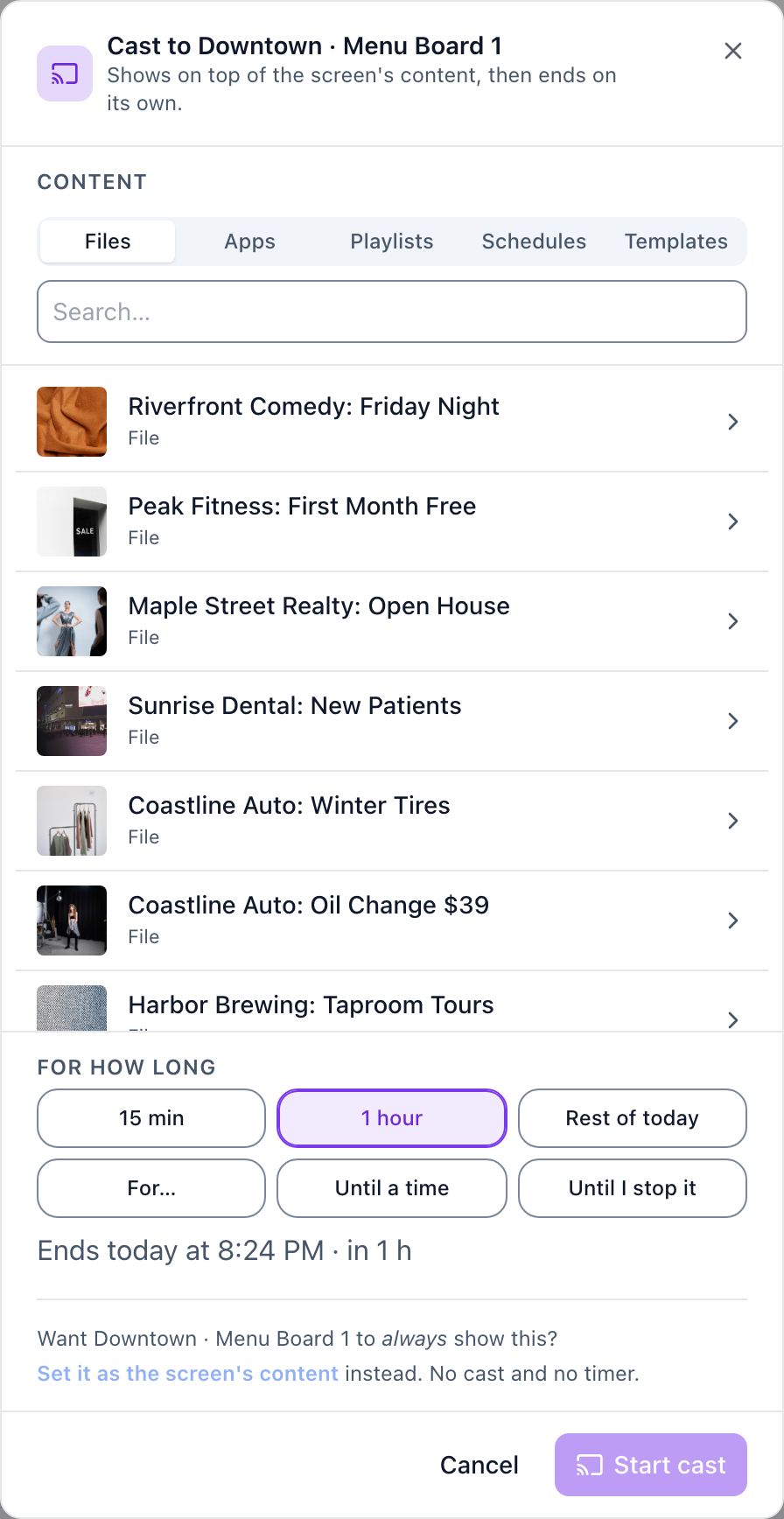
The default length is one hour. Choose Until I stop it for a cast with no end time.
Stop a cast
- Find the Casting chip in the panel, or the cast cell on the row.
- Select the X on it.
The screen returns to its own content.
Make a cast the screen's content
- Open the cast dialog for the screen.
- Pick the content under Content.
- Select Set it as the screen's content, below the length buttons.
Post a message to many screens at once
Quick Post writes a short styled message, sends it to the screens you tick, and returns them to their schedule.
- Open Quick Post at cms.brixsignage.com/quick-post. It has no sidebar entry.
- Type your message into the Message field.
- If you want a second line, type it into the subtext box.
- Choose a Style: Announcement, Alert, Celebrate or Info.
- Check the Preview panel.
- Choose a length under Show for.
- Tick the screens you want in the Send to panel.
- Select the Post to button at the bottom.
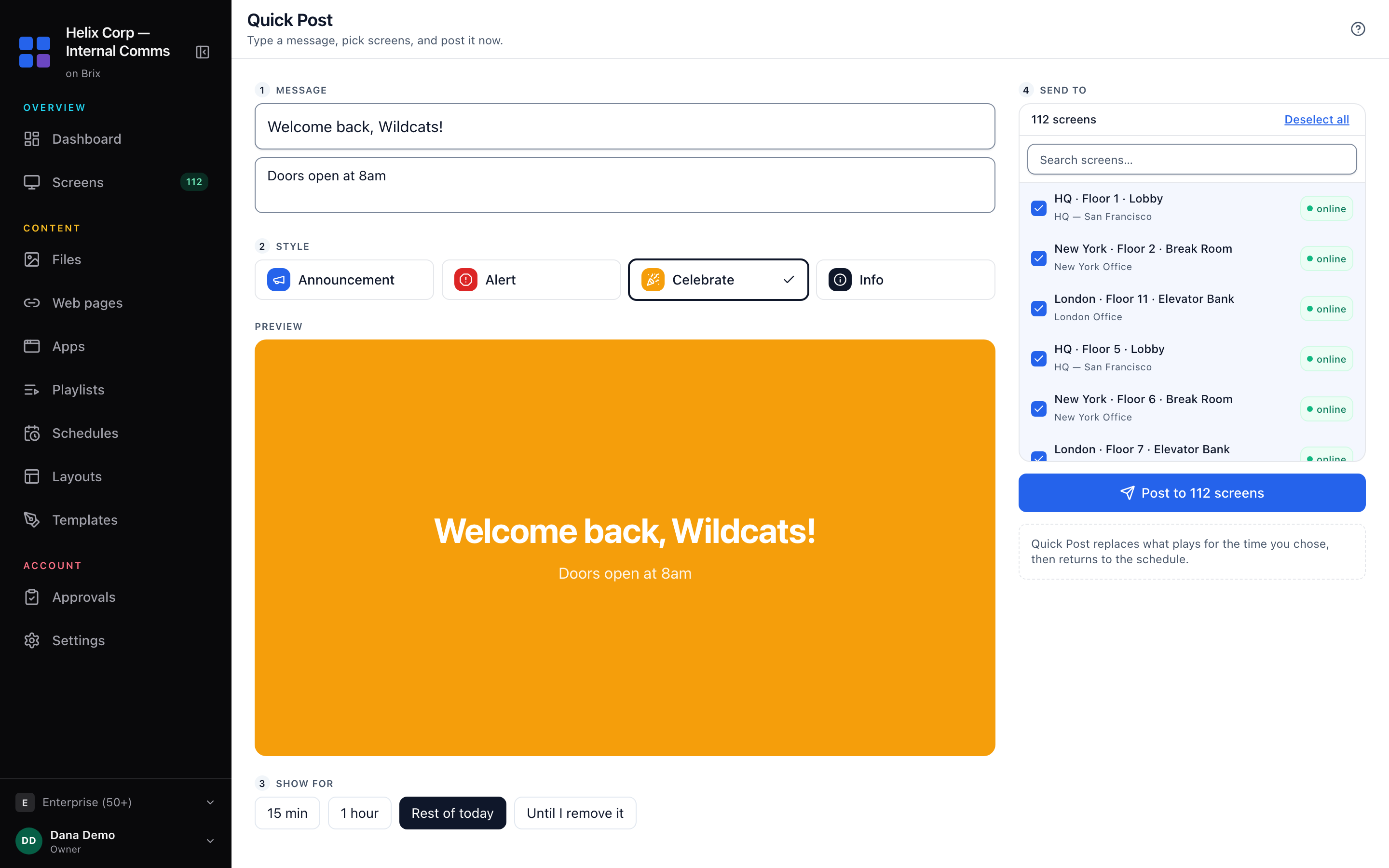
With Until I remove it the message stays until someone removes it.
You can do all of this from a phone browser: read manage digital signage from your phone.